Using the Canon photocopiers over the network
Printing
- setting up your computer
- submitting a print job
- viewing jobs
Installing the printer drivers. Windows
- Press Start>Run
- In the box type \\chnts1
You will see the following:
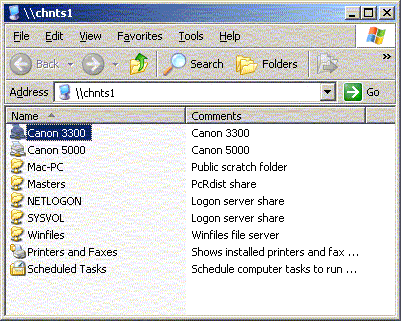
- Double-click on the machine you wish to use to install the printer locally.
Installing the printer drivers. Mac OS X
- Download the printer drivers from http://downloads.canon.com/cpr/software/imagerunner/iR-PPDv1.81_Mac_OSX_Installer.hqx. An OS X version is on afp://deuterium.ch.ic.ac.uk/X-Public Utilities/Printing/Scanning/Canon Photocopiers/MacOSX/
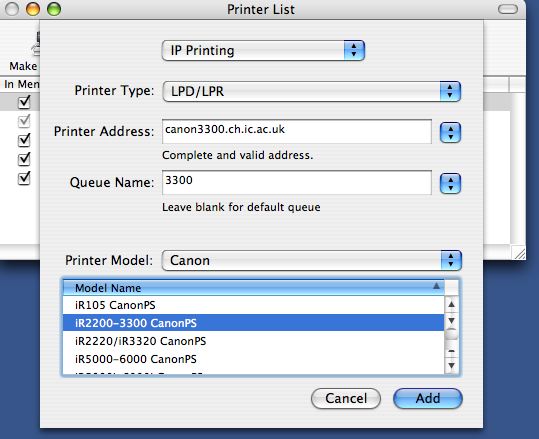
- Using Printer Setup Utility (Applications/Utilities) Add the printer with one of the two IP addresses: canon3300.ch.ic.ac.uk or canon5000.ch.ic.ac.uk
Submitting a print job
Using Word as an example, the dialogues vary slightly among applications- Prepare your document in the usual way.
- Come out of Word and set up the printer driver as follows:
- Press Start>Settings>Printers and Faxes
- Double click the copier you are going to use.
- Select Printer>Properties
You should now be here:
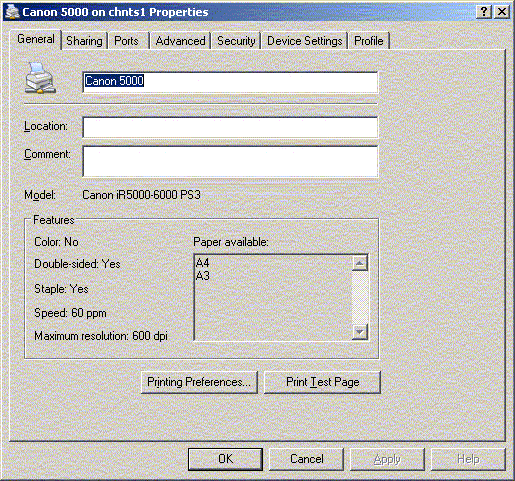
- Select Device Settings then Get Device Status.
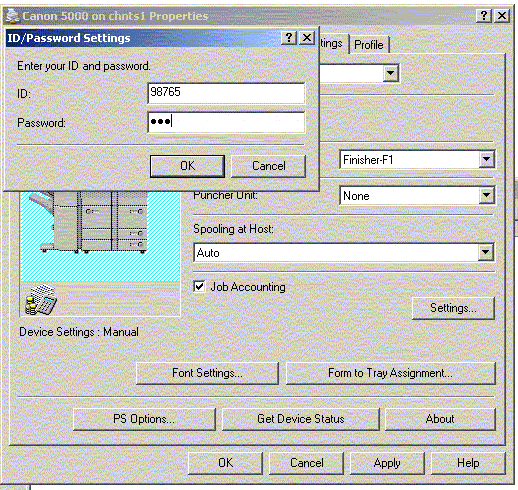
It is asking for your photocopier ID number and password.
Say OK to everything and go back to your
document.
- Submit the print job
Back in Word, select File>Print and selct the printer you
just configured.
Press Properties
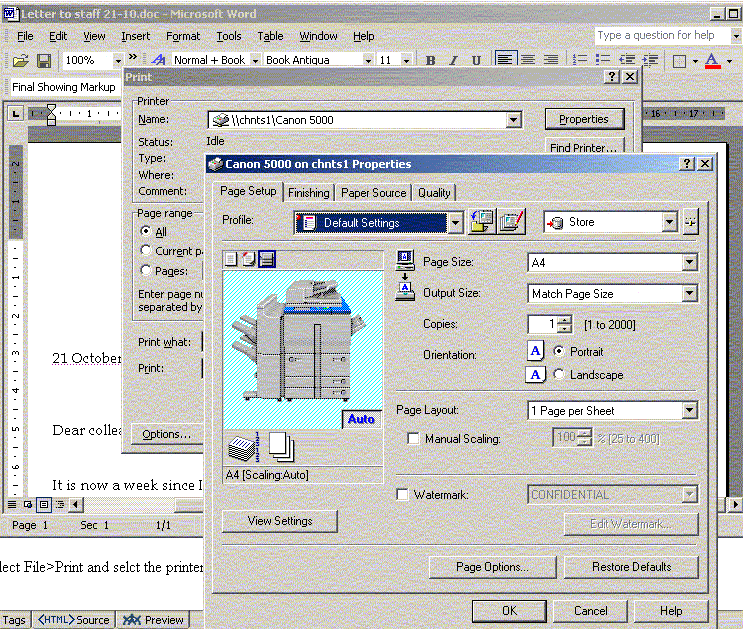
Set up your output to whatever you wish, but check that that the dialogue top right above says Store. This is because we want to store the job on the copier - direct printing from here has been disabled to prevent misuse.
Next, press the funny looking button next toStore. You should get this:
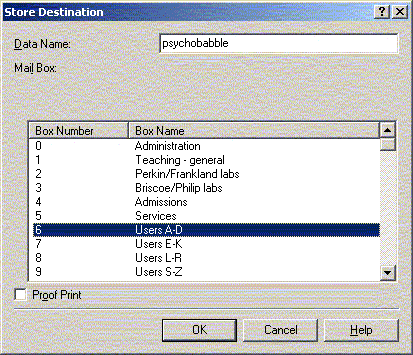
You need to give the document a name and location on the copier. The locations are called Mailboxes. The first 11 are free for all to use and are not protected. The data contained is deleted after 3 days. If you want a private mailbox you can set one up with a password quite easily.
Pick an appropriate mailbox, say OK and send your
document to print.
- You can now visit the copier and print the document at your leisure.