You need a good sample.
It should be:
In a tube that has been dried using a stream of nitrogen. We know what the spectrum of acetone looks like. There is no need to record it again.
Homogeneous. A sample with solid bits in it is no good. You will get bad resolution.
Reasonably concentrated. Don't blame the spectrometer for only seeing TMS!
About one inch up the tube. This is all that is needed. Any more is a waste of solvent.
Spinning. Is it? Look and see! On the subject of spinning, the tube must be externally clean. The most common reason that the spinning fails is dirt in the probe that got there on the outside of a tube. Give the tube a wipe before you put it in the machine.
The instruments use a software lock to prevent drift during data acquisition. This works by locking onto a large peak. If you are using chloroform-d, this will be TMS and will be no problem - the chloroform-d supplied contains enough TMS for the software lock to work. Users of other solvents may have to add a drop of TMS to their sample to get the lock to work.
Finding a signal
What to do if:
You get no signal at all
The system stops with the message scan aborted status=40
You get a `folded spectrum' - bits of the spectrum appear at either end of the scale but not in the middle
In all these circumstances you need to get the signal back to the middle of the scanning area.
To do this you need a sample of something producing one sharp peak. Chloroform or acetone are perfect. Put it in the probe and see that it is spinning.
Run Scan Controller.
Select Files, PPR file, and open the file called 10KHZ.PPR. This causes the spectrometer to scan over a range of 10kHz, much wider than we would use under normal conditions.
Select Setup.
Select Display, FFT - Fast fourier transform.
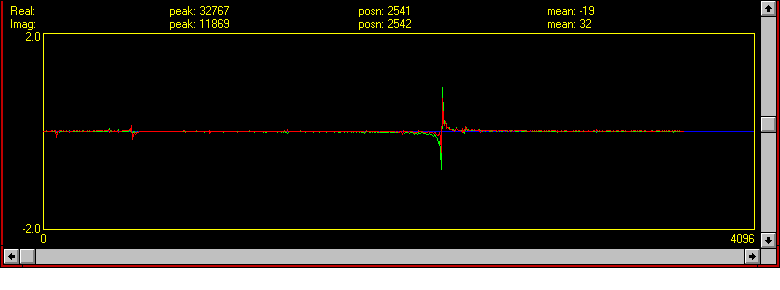
Using the mouse spread the display out and, using the bottom left arrow button, arrange the trace so that you can see the entire scan range, which is the area up to where the line turns blue. The numbers on the left represent amplitude and along the bottom data points which for this exercise should be 0 and 4096. The display should look something like this.
As long as you can see a big peak somewhere all is well. Don't worry about anything else that is
going on, for instance any smaller signals that might pop up.
This peak must be set to the centre of the scan range, the section of the trace before the line turns blue.
To do this simply change the Observe Offset setting appropriately.
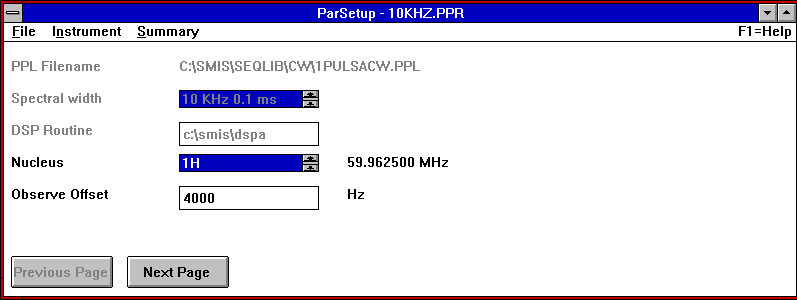
A smaller number will send the peak on the display to the left, and vice versa. This number need only be set to the nearest 1000Hz. Knowing that the display is 10kHz across, it is easy to judge the correct setting. Type a new number in the box and press RETURN. You will see the peak move to the middle of the scan. REMEMBER THIS NUMBER for the next stage.
Select Abort. It will ask you about saving settings. Agree with it.
Now put this number in the OPERATE.PPR file.
First, lift the sample out of the probe. OPERATE.PPR uses the software lock which prevents drift while scanning. If you try to alter the offset while there is a sample present you will get the error message status=40. This occurs when the software lock is compromised.
Still in Scan Controller, select Files, PPR file.
Select OPERATE.PPR
Select Setup
Change the observe offset number to the number you remembered a minute ago, and press RETURN.
Lower the sample back into the probe. Your peak should appear. Spread the display out to full scale as before and check that it is in the right place. If you are not happy, select Exit and begin again at the beginning.
Next we need to tune the instrument (sometimes called `shimming')
Now we need to look at the FID, so select Display, FID.
The display should look something like this (if resolution is poor)
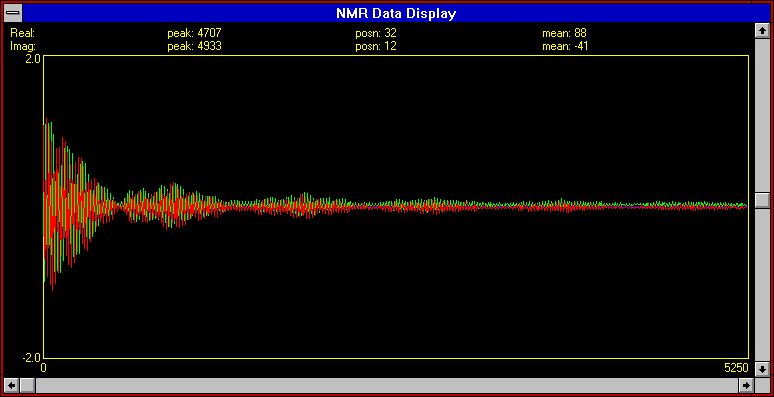
Adjust the RESOLUTION knob on the top right hand side of the magnet unit. Note that this is quite a sensitive control, but your adjustments won't work their way through to the display for a couple of pulses. So adjust, then wait two scans to see what you have done, then adjust again.
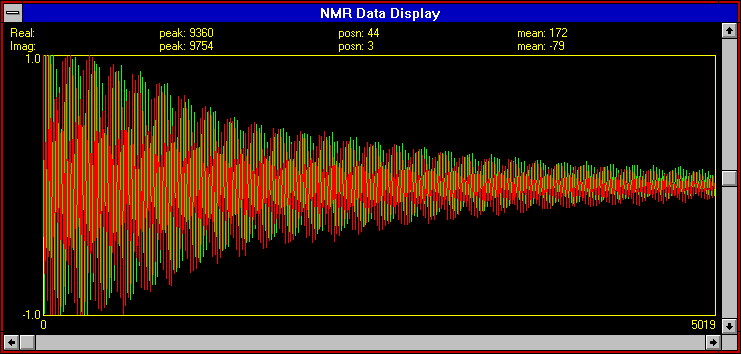
You are trying to get an FID which looks something like this - a smooth decay, of maximum amplitude all the way down.
[picture overleaf]
Don't worry about the frequency or other fine structure of the FID - the shape of the `envelope' is more important.
Occasionally, you may run out of travel on the RESOLUTION control. In that case you need to adjust the hidden `Y' control behind the flap down front panel. This is a coarse version of the RESOLUTION control you just used. Change this very carefully until things get better, then use RESOLUTION for fine tuning.
DO NOT ATTEMPT TO ADJUST ANY OF THE OTHER HIDDEN CONTROLS
The other hidden controls are very sensitive, and interact with each other, but fortunately do not change over short periods and NEVER require attention by the routine user. The usual threats apply to those caught fiddling with these controls.
When satisfied, EXIT the scan controller completely (Files, Exit) and agree to save the new parameters. You are now ready to run your spectrum.
Finally, you can adjust the resolution on a more complicated sample, but it is much more difficult to judge what a `good' FID looks like. One way is to zoom in on the FFT and tune that. This technique requires a certain amount of practice and lots of patience, and is not recommended if the queue for the instrument becomes restive.