 Log-in 1. Perhaps the single most confusing aspect for most people is what the Home icon (right) means. So let's sort this out immediately. On the computer desktop, this icon means "a directory where the folders and documents associated specifically with the login account are stored". This is because all computers work on the metaphor of a filing system with hierarchies. Home is the top of your personal file system! [The next generation of Windows may weaken or lose this metaphor, so be warned!]. If you double click this icon, you should see YOUR files. Check this! If you get lost navigating the hierarchical directories, "Home" is always a useful way of restoring a sense of orientation. Home also has a synonym, called "My Documents", which the operating system can sometimes display instead of Home. [This connection between Home and "My Documents" is not always true, but is set to be true in the chemistry department].
 Start FireFox using the icon on the desktop. [Why not Internet Explorer (IE)? Well, it handles some of the chemical stuff more delicately than Firefox, but it mostly works, so if you are really keen on IE, go ahead and use it]. You will discover another "home" (right)
  . This means "the Web page designated as the starting point for Web navigation in the College/Department".
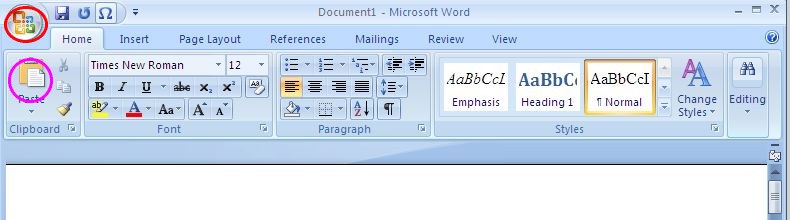
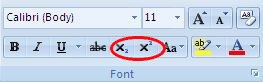
Start Microsoft Office 2007. The basic (Home) Word document work area is shown to the left and you should familiarise yourself with some of the palettes. This version of the program is somewhat different from earlier versions you may already be familiar with. In particular, open/save/print dialogs are now to be found by pressing on the Icon highlighted here with a red circle. Copy/past operaations are invoked using the icon encircled in purple. Other common operations are found to the right of these two, including the chemically useful subscript and superscripts (right diagram).
 Note also the the default document saves invokes the new .docx format, which is an XML-based type with much interesting informatics potential. If you intend sending a document to someone who is still using Word 2003 or earlier, you should instead save your document in the older .doc format (although .doc to .docx converters are available). You can also save as PDF, which is useful for project/report submission.
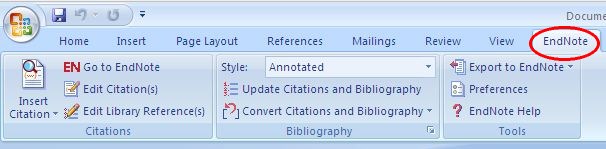 There are two other task-bars you will find useful. the Insert bar inserts a variety of other content, including pictures, tables and the like. The EndNote tab invokes a citation and reference manager, which you will use as described below (Important: If the Endnote ribbon does not show, do the following; 1. Go to Programs/Additional Programs/EndNote/Configure EndNote. 2. Run this script, whereupon the EndNote ribbon should appear in Word 2007).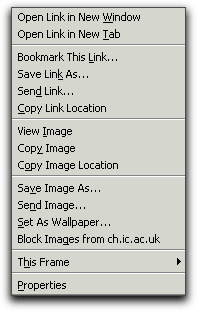
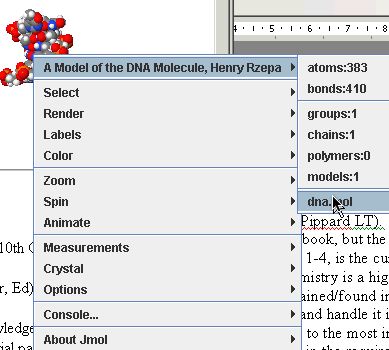 Images are special when it comes to copying. Proceed as follows:
- Find an image in the browser you wish to copy, and with the cursor over the top, right click (Windows) to get a menu that looks like the one on the right:
- If one of the options is Copy this image, select it. Not all browsers support this, in which case instead invoke save this image as and save it in an appropriate directory (A suitable sub-directory of Home on Windows).
- With an Office Word window open, paste the image (if you copied it) or Insert/Picture/from file (if you saved it). The image will come over as its "real size". Word will allow you to rescale it, by dragging the bottom right corner of the image. Observe carefully what happens if you resize it to be larger as well as smaller.
- Do remember how to change between windows (the technical term is that the active window is said to be on focus) by selecting the required window from its icon shown on the task bar/dock at the bottom of the screen.
- Not everything is always "copyable". Some apparent images are in fact produced by a "plugin" or "applet" embedded in the browser. This includes most conspicuously chemical diagrams, such as may be found on these course notes. Here a copy or a save operation will in fact save e.g. molecular coordinates (i.e. "data") rather than an actual image. To regenerate any image from such coordinates, you would have to import them into a suitable molecular modelling program. Try "right clicking" on the rotating DNA molecule on the start page of this documentation to see if you can rescue its coordinates!
Starting and using ChemDraw. If you click on the Chemdraw icon in the toolbar of these notes at the top (second along) you will start Chemdraw as a separate program. Practice by drawing Penicillin, drawing what you see below.
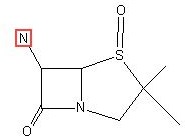
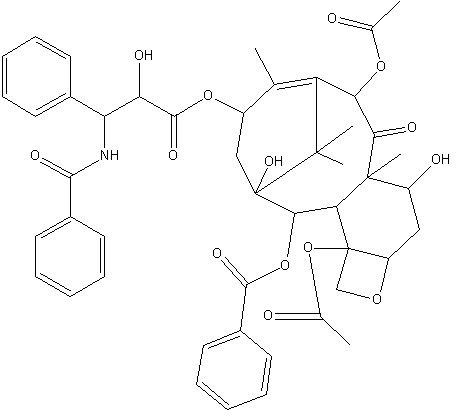
When you are happy with your own drawing of Penicillin, try reproducing that of Taxol (right hand diagram). Check that you have drawn it correctly by calculating its formula. To do this, Go to View/Show analysis window and record what you see. Then repeat the procedure by clicking on the image of Penicillin or Taxol above to get a "one I did earlier" copy (it should give you C47H51NO14. Mol. Weight 853.91). Do you get the same values as the pre-recorded one? If you do not, you will have to try to find where the discrepancy is. Remember, if you cannot draw a structure reliably, you will not be able to search for it reliably.
Using the ChemDraw application, select copy/paste the structure into a Microsoft Word window. Practice editing the structure inside the Word processor by double clicking its diagram.
Practice re-scaling the ChemDraw diagram either within Word or within Chemdraw. Scaling is normally done by pointing the cursor at the bottom right hand corner (it should change shape at this point) and then "dragging" inwards or outwards to change the size. Try copying instead the Web picture (GIF format) from this Web page to Word. Put side by side with the picture of the same molecule derived from ChemDraw and experiment with scaling both. What is the difference in behaviour?4
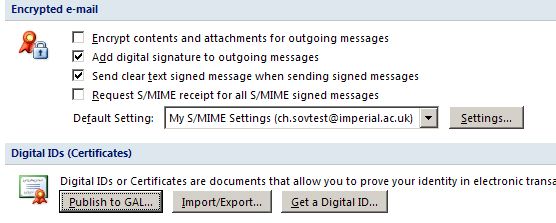 Digital Certificates. This is a mechanism whereby an email or a Word document (also Acrobat) can be digitally signed to ensure it has not changed since signed, that it truly comes from the signer, and has a clear time stamp associated with it. A Imperial College digital certificate is automatically issued to you when you log in.
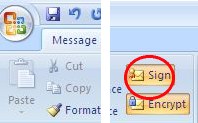 To send a signed (i.e. trusted) email, open up Outlook 2007 and from Tools/Trust Centre/E-mail security check the Add digital signature to outgoing messages button. You need only do this once, and all subsequent emails will be signed. Whilst you are in this panel, also click on Settings, and from there Choose a Signing Certificate. Only one should be on offer. Select it, and close the Change security settings box. Now click on Publish to GAL. This publishes your certificate so that others can find it (they would need your certificate if they wish to send you an encrypted (as opposed to signed) email. It make take up to 30 minutes for your email to become searchable. When you compose a new message, a Sign button will appear in the taskbar (red circle, left) which you can select/deselect as appropriate.
- An alternative to using Outlook is the Web interface (using Internet Explorer and URL: https://icex.imperial.ac.uk/Exchange/ ). Go to Options and thence E-Mail Security. You will be asked to download an S/MIME control. If you are using your own machine, you can install this. Currently, this installation is not possible on College machines (but watch this space).
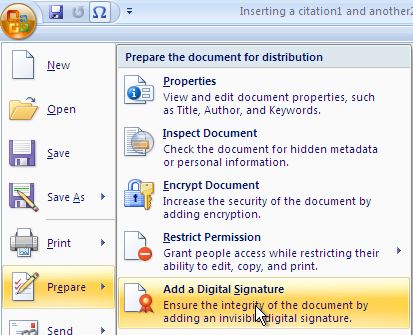 To sign a word document, create it, then from The top left icon, Prepare/Add a digital Signature. Close the panels and save the document. You need to do this for each document you wish to sign.
- Yo can combine the two operations, i.e. sign a document and then sign the email you use to send it to someone. You may be asked to use this combination when submitting course work to laboratory supervisors.
- Search for other people's certificates here. If you have in your possesion your own certificate and another person's certificate (the public key thereof) you can go one step further than signing, and proceed to encrypting either the email, or the document, or both. Only you and the person whose certificate you have included will be able to read the resulting email/document.