NT
workstations – logons and directories
Logging
in
Log
in using your User Name and Password. Check that the Domain is set to IC
– you won’t be able to log in otherwise!
Can’t
Log in?
This
can happen for a number of reasons. Here are some tricks if you can’t
log on to the NT machines.
-
you could be ‘over quota’
Log
on to one of the Unix machines and get a command prompt
(Toolchest>Desktop>Open Unix Shell)
Type
quota
–v
– this shows how much disk space you have left. If this is less than
zero you need to delete some files. The following commands should get you going.
ls
–l
lists your files and directories
rm
deletes files
rm
–r
deletes directories complete with contents
cd
dir
to go down a level to subdirectory
dir
cd
.. to go up a level
- your
profile could have gone wrong
This
can easily happen if you use other clusters around the college and change
various settings while you are there. They get saved back to your profile
which might make it unreadable by our machines.
Log
on to one of the Unix machines as before
cd
<username>.pds
change
to your profile directory
rm
ntuser.dat
delete
this file, which contains your registry settings
Try
again
If
you still can’t get in, back to the Unix and then
rm
-r <username.pds>
This
removes the complete profile – you will lose your desktop settings and
anything you have saved in this directory if you have to do this. Best not to
keep anything valuable in your .pds folder.
- you’ve had an account for years but can’t log in. However you
have never logged in before.
If
you fall into this category you must do the following – it sounds a bit
weird but it works
Log
into the Unix (see above)
Type
passwd to change your password. You can set it to what it was before if you
like. Honest.
Follow
the instructions.
Log
out of the Unix and try again. Note that you might have to wait a few minutes
for this to take effect.
Directory
structure
When
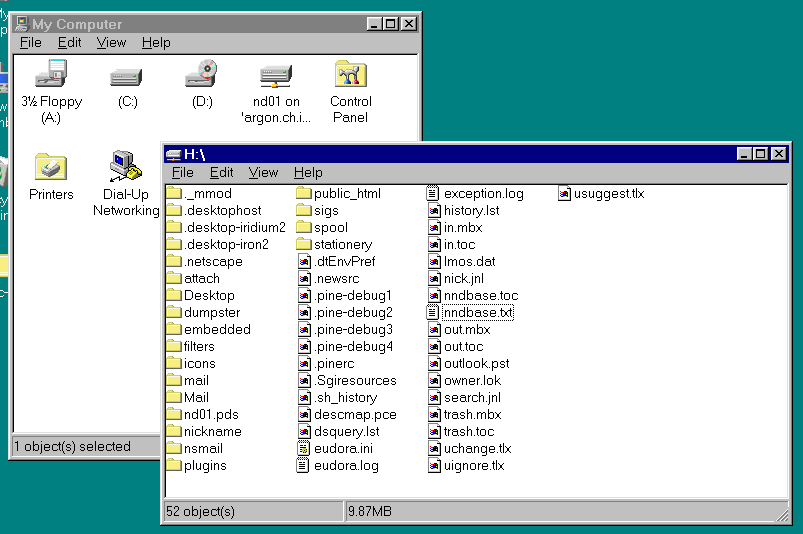
you log in your “home directory” is mounted as <username> on
‘argon.ch.ic.ac.uk’ or dive ‘H’. This is 25Mb in size.
As well as anything you care to store there, it contains your desktop settings
and, if you use Eudora or Outlook, your saved mail, as well as equivalent files
created if you have used the Unix machines.
An
important folder to be aware of is <username.pds>. As well as your
desktop settings, this contains files you have stored to the desktop.
Microsoft applications like to save files in here. It is however best to save
files elsewhere in your ‘H’ drive. <username>.pds is
downloaded each time you log on, and the bigger it gets the longer it takes to
log on. If it gets too big the logon process might time out and you
won’t be able to log on at all.